Controls and settings
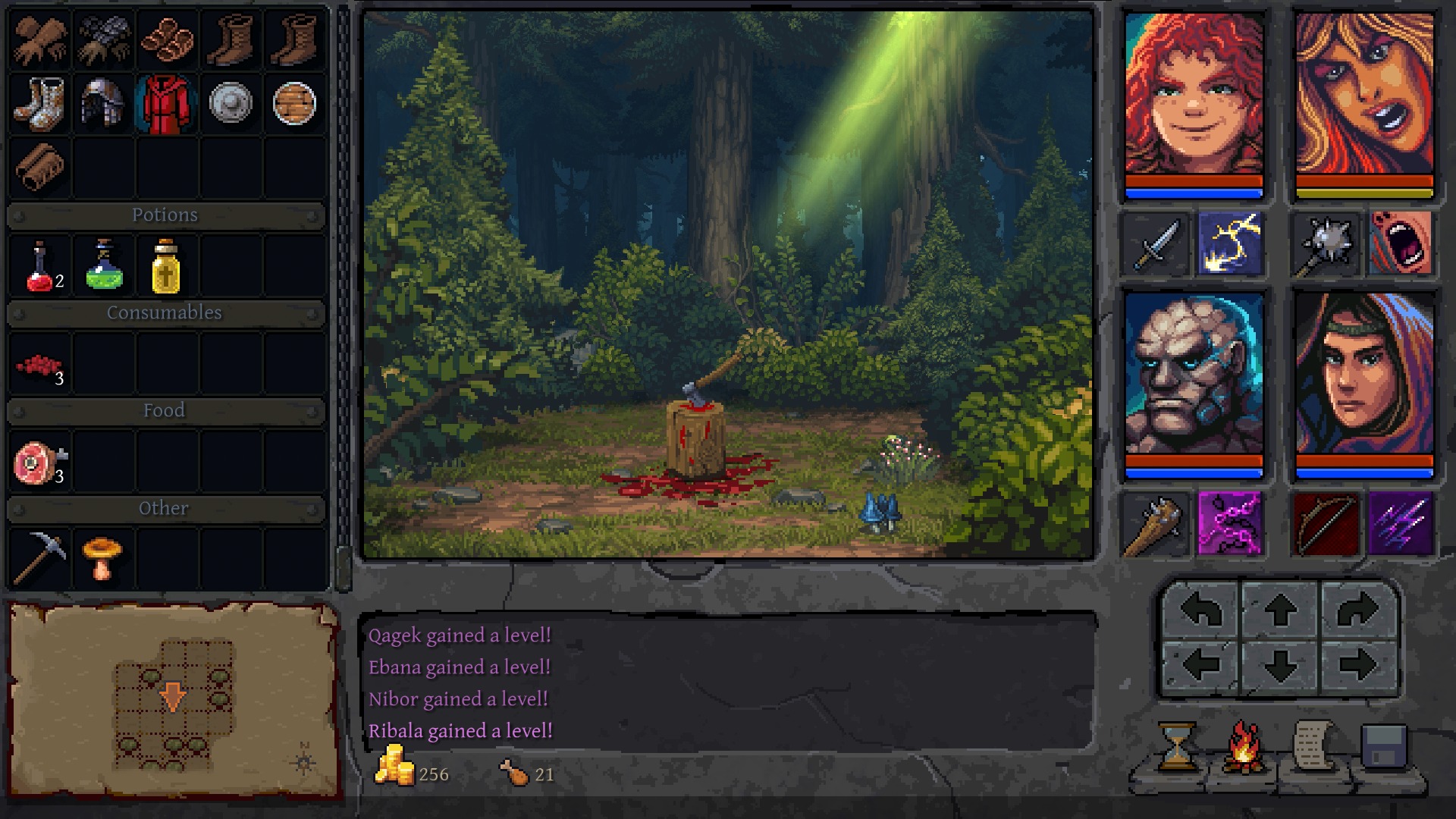
You can use the keyboard to move, explore and control each hero's attacks. Basic attacks already have keys assigned, but active skill shortcuts start unbound. Set them in Options > Controls, where you can rebind the other controls too.
If you need to know exactly what a stat or condition does, hover over it. Tooltips for stats, items, skills and conditions explain their rules and effects.
Default controls
| Action | Control |
|---|---|
| Move, strafe and turn | W, A, S, D, Q, E or arrow keys |
| Interact with doors, levers, chests, people or objects | R |
| Basic attacks for heroes 1–4 | 1, 2, 3, 4 |
| Active skills for heroes 1–4 | Unbound |
| Rest | T |
| Map | M |
| Equip / Character / Skills / Quests panels | U / I / O / P |
| Change targeted enemy | Tab |
| Pick up all items | Y |
| Quick Save / Quick Load | F5 / F9 |
| Pick up one item | Right-click or drag it into the inventory |
| Throw an item | Drag it and release over the centre of the screen |
| Change active skill | Right-click the skill slot beside the basic attack |
| End the round (Skip Round) | Space or the hourglass icon |
You can also start resting with the sleep icon. You need Food, and there must be no enemies nearby. Rest automatically uses Food from your shared supplies to restore the party's Health, Stamina and Mana; you don't need to feed each hero beforehand.
Skill shortcuts
Assign keys to the four Hero Use Skill controls in Options > Controls; F1 to F4 are one option. You can then use 1 to 4 for basic attacks and your new shortcuts for each hero's selected active skill. To select another skill, right-click its slot beside the basic attack. Passive skills work automatically, so you don't need to select them in the active slot.
Mapping and readability
Automapping is enabled by default. Choose Minimap Only or Disabled if you want less mapping. Show Items Behind Objects makes objects hidden behind scenery visible, and turning off Item Tooltip Delay removes the wait for item descriptions.
Floating Combat Text can show everything, damage only, status only or nothing. The font choices are Default, Pixelated and Pixelated B, so pick the one you find easiest to read.
Animation and accessibility
Move / Turn Animation lets you turn off movement and turning animations. Accessibility settings let you reduce or disable camera shake, flashes, portrait blinking, italics and wall-hit sounds.